> ## Documentation Index
> Fetch the complete documentation index at: https://docs.saucerswap.finance/llms.txt
> Use this file to discover all available pages before exploring further.
# Track your portfolio
> Use the SaucerSwap dashboard to monitor token balances, V1 and V2 positions, farm and LARI rewards, xSAUCE, order history, and any watched address.
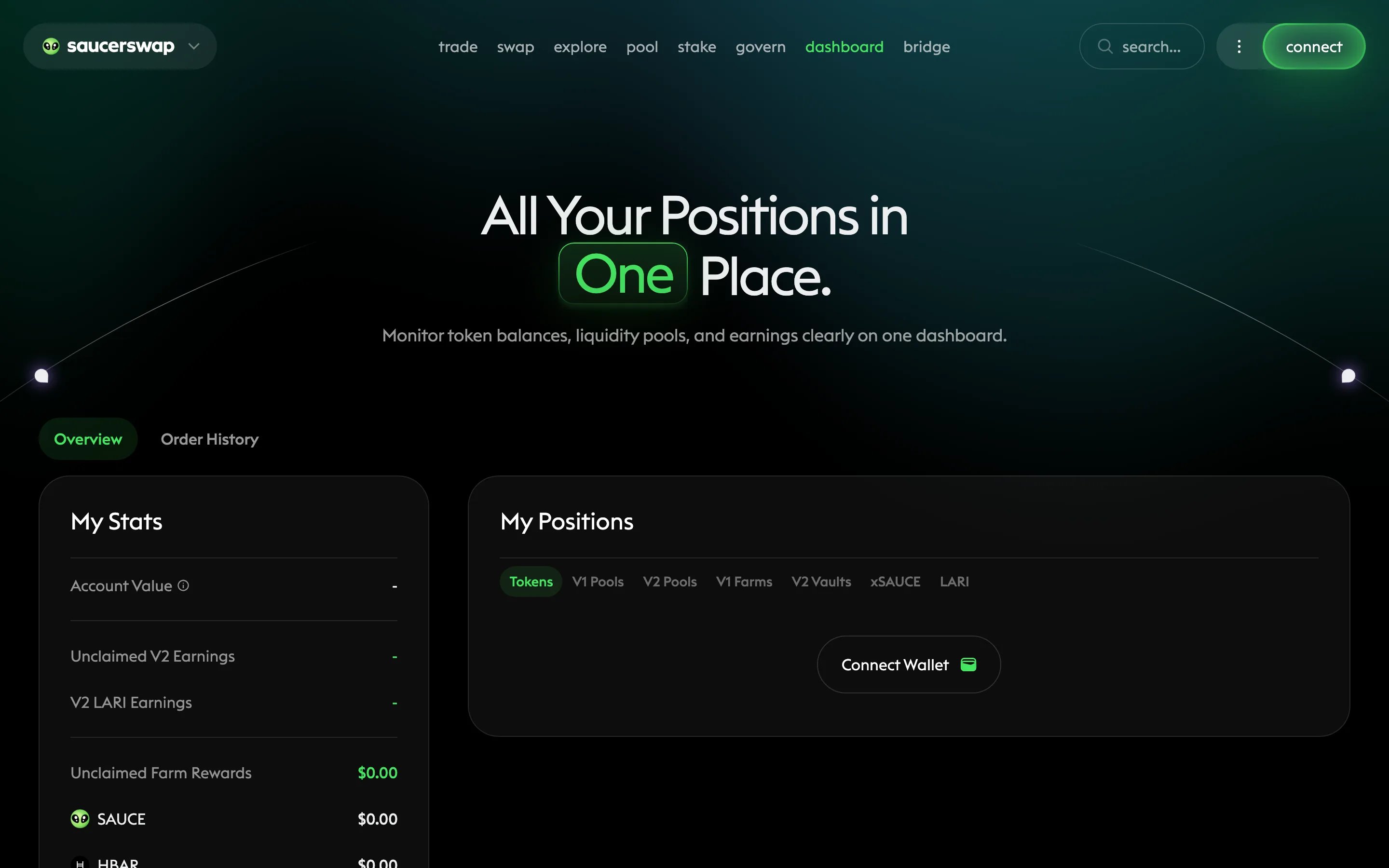
The **dashboard** page collects everything you hold on SaucerSwap in one place: token balances, liquidity positions, farm and LARI rewards, staking, and your order book history.
 ## Prerequisites
* A [Hedera wallet](/get-started/wallet) to connect — or just an account ID you want to look at, since portfolio data is public on Hedera
## The Overview tab
The **Overview** tab has two sections.
**My Stats** summarizes value and pending rewards:
| Stat | What it shows |
| ---------------------- | --------------------------------------------------------- |
| Account Value | The combined value of your tracked holdings |
| Unclaimed V2 Earnings | Swap fees accrued to your V2 positions, not yet collected |
| V2 LARI Earnings | LARI rewards attributed to your V2 positions |
| Unclaimed Farm Rewards | Pending V1 farm rewards, in SAUCE and HBAR |
**My Positions** groups your holdings by product: **Tokens**, **V1 Pools**, **V2 Pools**, **V1 Farms**, **V2 Vaults**, **xSAUCE**, and **LARI**. Each group links through to the page where you manage that position — claim V2 fees, harvest farm rewards, or unstake.
Unclaimed V2 fees and farm rewards do not compound. If the dashboard shows meaningful unclaimed amounts, collect them from the position pages.
## The Order History tab
The **Order History** tab lists your V3 order book activity: placed orders, fills, cancellations, and expirations. Use it to reconcile partial fills and confirm cancellations reached a final state. See the [trade tutorial](/tutorials/trade) for how order lifecycles work.
## Watch any address
You do not need to connect a wallet to inspect a portfolio. Enter any Hedera account ID to view its holdings and positions read-only — useful for monitoring a cold wallet, a treasury, or a trader you follow. All of this data is public on Hedera; the dashboard just assembles it.
## Next steps
Collect accrued fees and manage your concentrated liquidity positions.
Understand order statuses and cancellation finality on the order book.
Put unstaked SAUCE to work in the Infinity Pool.
## Prerequisites
* A [Hedera wallet](/get-started/wallet) to connect — or just an account ID you want to look at, since portfolio data is public on Hedera
## The Overview tab
The **Overview** tab has two sections.
**My Stats** summarizes value and pending rewards:
| Stat | What it shows |
| ---------------------- | --------------------------------------------------------- |
| Account Value | The combined value of your tracked holdings |
| Unclaimed V2 Earnings | Swap fees accrued to your V2 positions, not yet collected |
| V2 LARI Earnings | LARI rewards attributed to your V2 positions |
| Unclaimed Farm Rewards | Pending V1 farm rewards, in SAUCE and HBAR |
**My Positions** groups your holdings by product: **Tokens**, **V1 Pools**, **V2 Pools**, **V1 Farms**, **V2 Vaults**, **xSAUCE**, and **LARI**. Each group links through to the page where you manage that position — claim V2 fees, harvest farm rewards, or unstake.
Unclaimed V2 fees and farm rewards do not compound. If the dashboard shows meaningful unclaimed amounts, collect them from the position pages.
## The Order History tab
The **Order History** tab lists your V3 order book activity: placed orders, fills, cancellations, and expirations. Use it to reconcile partial fills and confirm cancellations reached a final state. See the [trade tutorial](/tutorials/trade) for how order lifecycles work.
## Watch any address
You do not need to connect a wallet to inspect a portfolio. Enter any Hedera account ID to view its holdings and positions read-only — useful for monitoring a cold wallet, a treasury, or a trader you follow. All of this data is public on Hedera; the dashboard just assembles it.
## Next steps
Collect accrued fees and manage your concentrated liquidity positions.
Understand order statuses and cancellation finality on the order book.
Put unstaked SAUCE to work in the Infinity Pool.